
Step 1: Ensure your prior WiFi is offline. Note if your prior WiFi is still online, your Pixelcade will connect to that WiFi and will NOT connect to your new WiFi.
Step 2: Power off your Pixelcade
Step 3: Using the included SD to microSD card adapter, insert the Pixelcade microSD card into your computer.
Windows:
Launch “Pixelcade WiFi Wizard.exe” and follow prompts
Linux:
./setupWifi.sh
and follow prompts
Step 4: Remove the Pixelcade microSD card from your computer and insert into this board on the back of your Pixelcade LCD marquee.
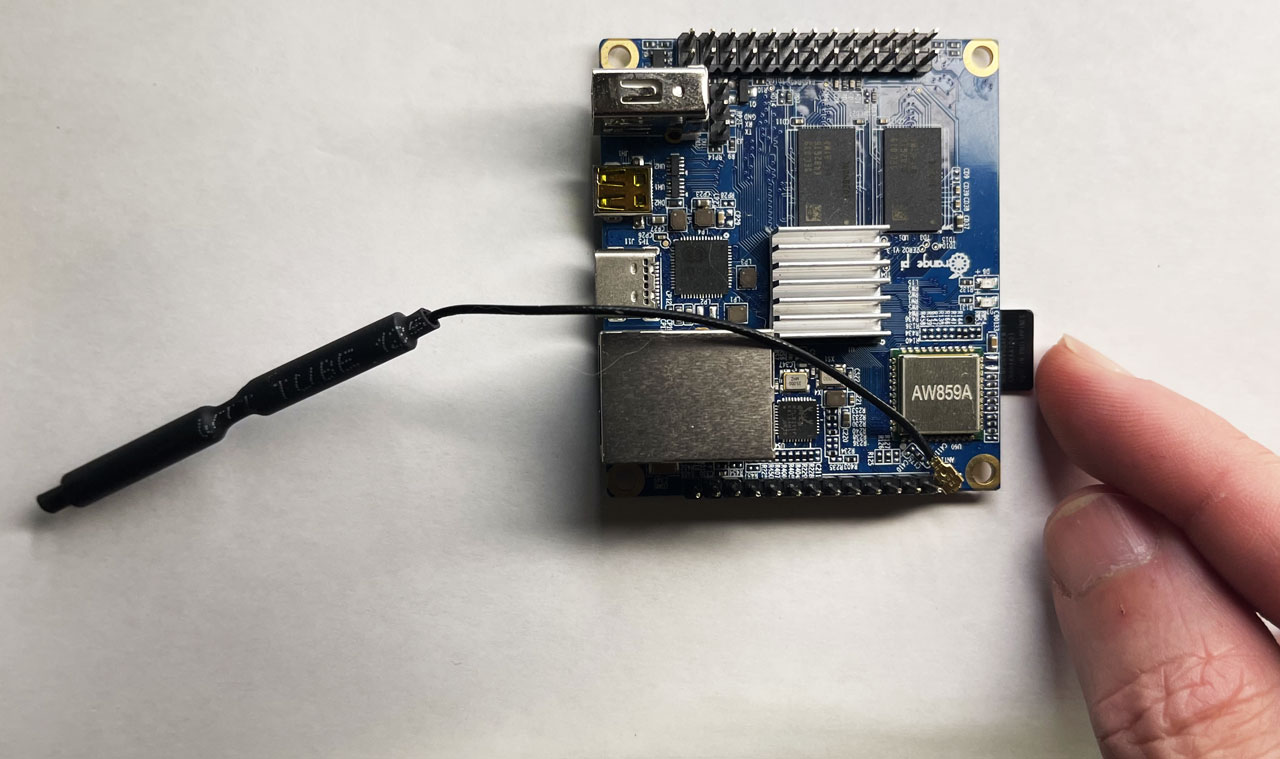 | 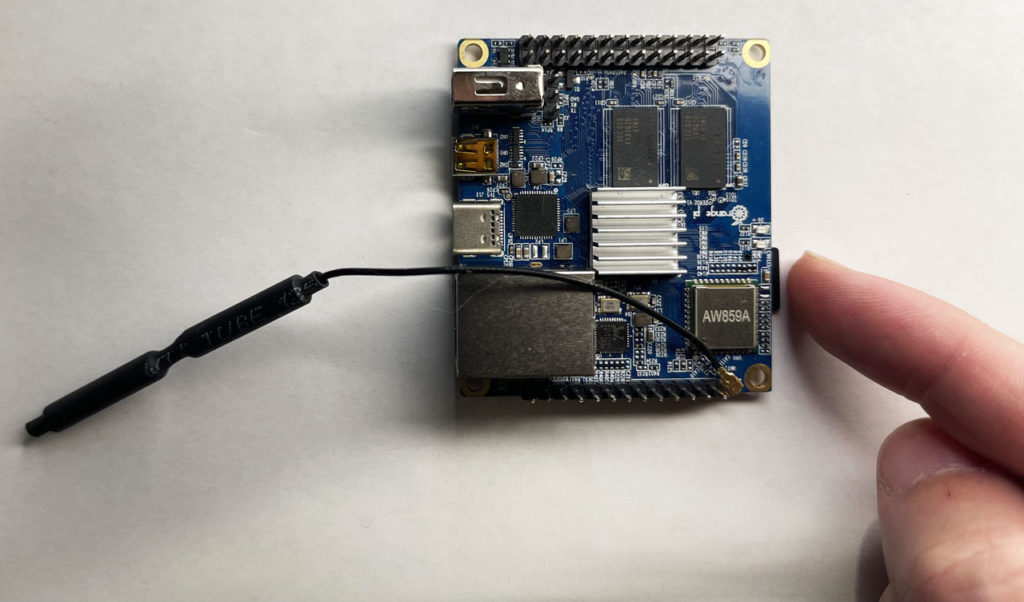 |
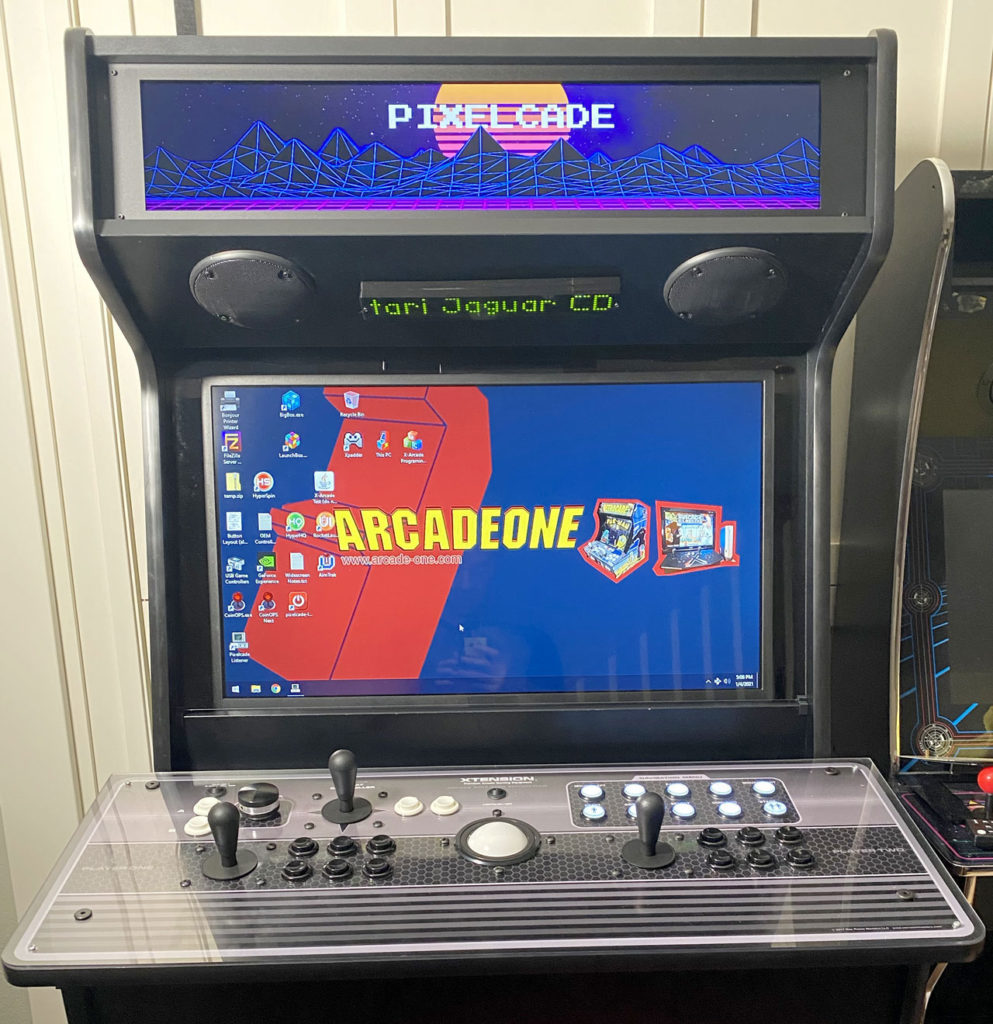
Step 5: Power on your LCD marquee and if you see this Pixelcade logo, then Pixelcade LCD has successfully connected to your WiFi network.
Note that you can also connect Pixelcade LCD using a hard line Ethernet.
 |