You’ll need at least 1 GB free on your USB drive for the Pixelcade installation.
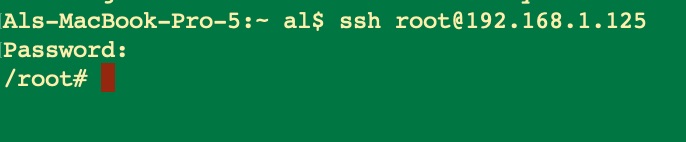
From a computer on the same network (Ethernet or WiFi) as your MiSTer, SSH into your MiSTer using the username of root and the password of 1.
ssh root@mister or ssh root@<Your MiSTer IP Address>
Then copy and paste the command below to install Pixelcade.
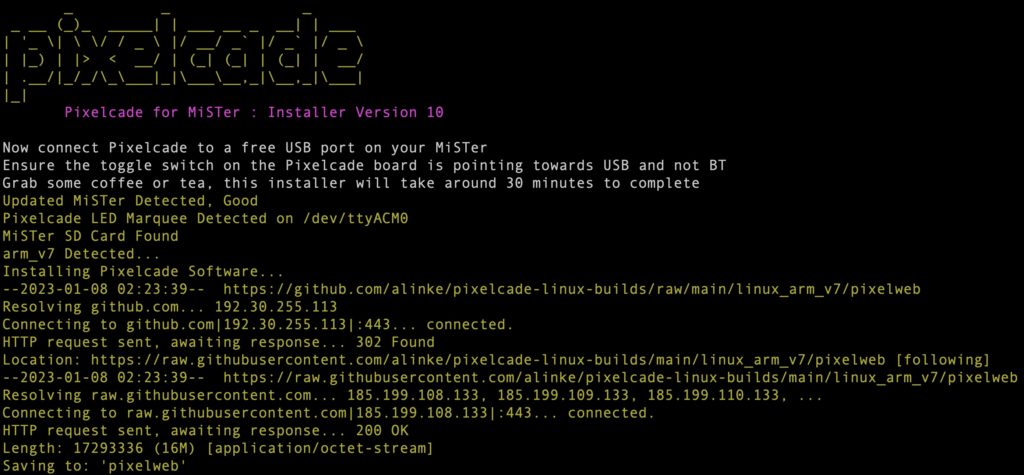
The installation script will take around 20 minutes to complete and is for both Pixelcade LED and LCD marquees.
After the installation has finished, reboot your MiSTer and then your Pixelcade should be changing dynamically as you browse and launch games from the MiSTer Front End.
If Pixelcade is not changing, then launch the Pixelcade mobile app, tap Settings, and then the MiSter tab. Then follow instructions to check if MiSter for Pixelcade is setup correctly.
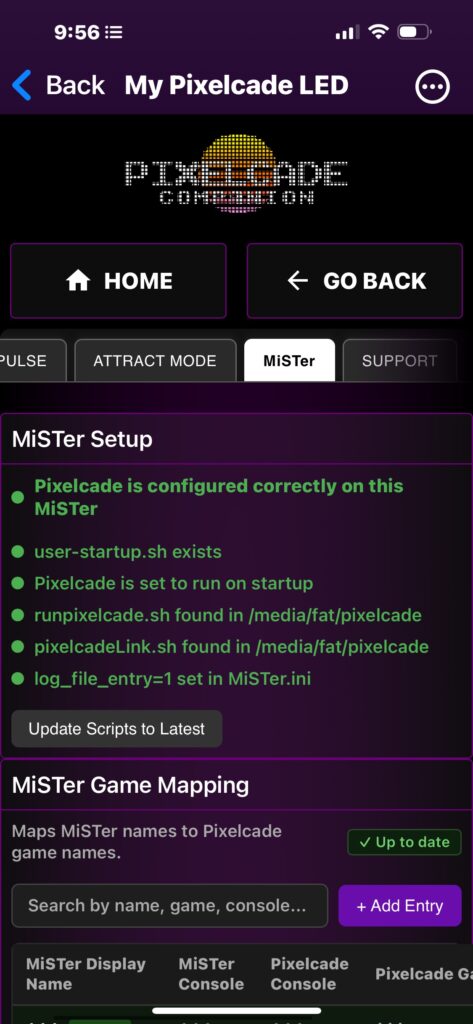
If you like, you can also manually ssh in and see what is happening by running this command:
cd /media/fat/pixelcade/ && ./runpixelcade.sh
Shortly after MiSTer has booted, Pixelcade LED should go blank. If it is not changing after that, then open this file
/media/fat/MiSTer.ini
And ensure that this line is present in the file (the installer script should have added this line automatically):
log_file_entry=1
If Pixelcade is not starting automatically on startup, check the contents of user-startup.sh and ensure it contains:
echo *** $1 ***
cd /media/fat/pixelcade && ./runpixelcade.sh
For reference, Pixelcade has been tested on MiSTer V220413, V210906, V221224, V23108, V240505, V250305, V250525, V260325
Follow these steps in addition if you have a Pixelcade LCD marquee.
Note that unfortunately Pixelcade LCD over USB is not supported due to limitations in the MiSTer linux OS. You must first connect your Pixelcade LCD to your WiFi following these instructions or connect with Ethernet.
Use the Pixelcade Companion windows app on a Windows PC that is connected to the same network as your MiSTer or other means (ex. your router admin page) to obtain the IP address of your Pixelcade LCD.

Then once prompted from this installer script, enter that IP address (without :8080)
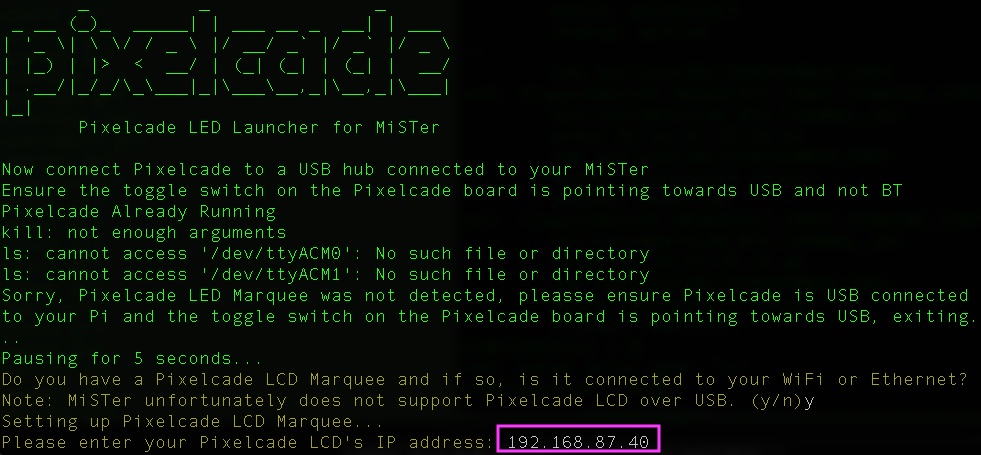
Reboot MiSTer and Pixelcade LCD
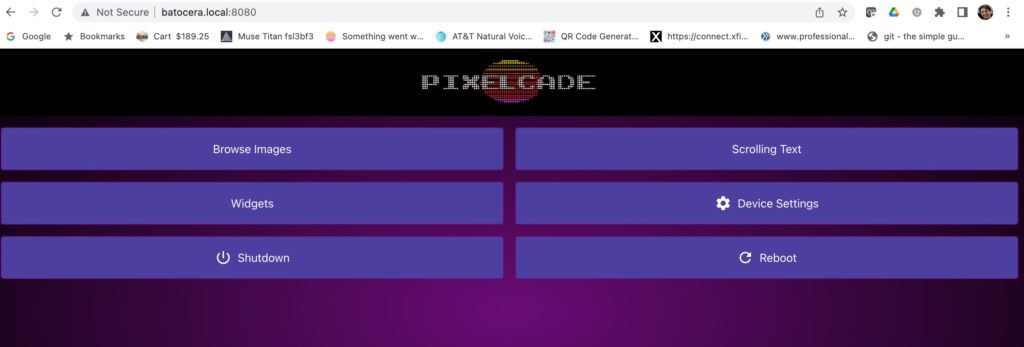
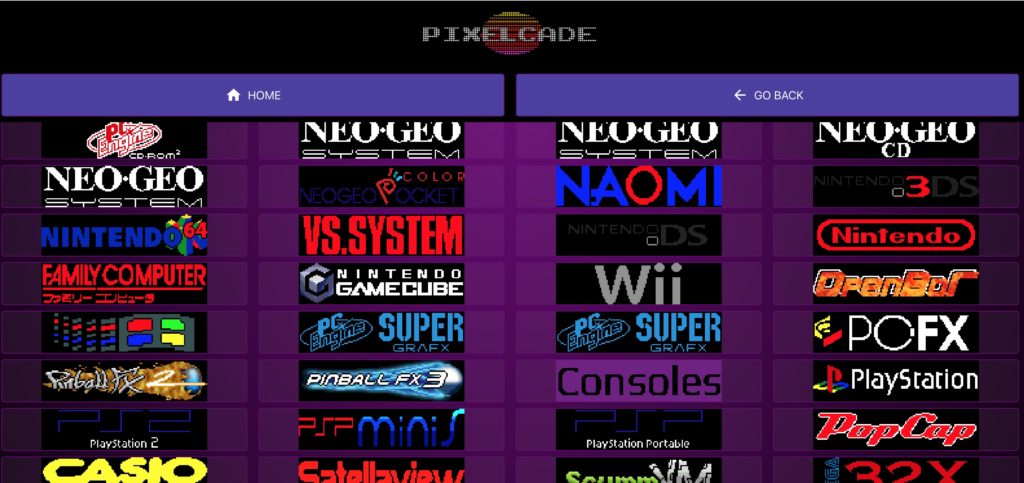
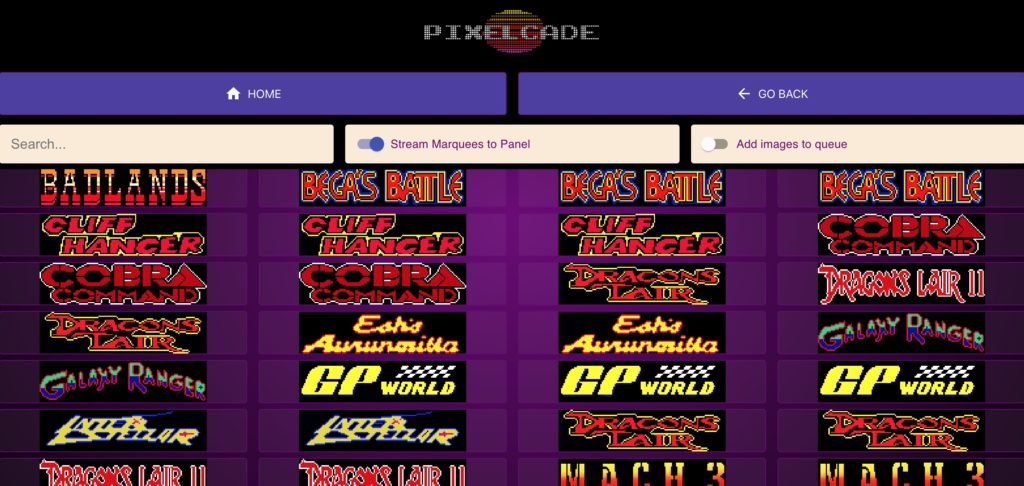
You may also use the Pixelcade Companion Web interface to browse artwork from any web browser on the same network as your MiSTer, go to:
<Your Pixelcade LCD IP Address>:8080
Note that unfortunately MiSTer does not support mDNS so only an IP address can be used for Pixelcade LCD. IP addresses can change so it’s highly recommended to reserve this IP address for your Pixelcade LCD marquee in your home network router’s admin page.
Some artwork will be present but you’ll most likely need to do some file renaming for some games following this guide.
Use the Pixelcade Companion Web interface to browse marquee artwork. Get the Pixelcade mobile app or from any web browser on the same network as your MiSTer, go to:
http://mister.local:8080 or http://mister:8080 or <MiSTer IP Address>:8080
For example: http://mister.local:8080 or 192.168.1.198:8080
If using Pixelcade LCD, then <Your Pixelcade LCD IP Address:8080>